Personal Project • Automation

Automated Expense Tracker

Seamless expense tracking automation using iOS Shortcuts and Google Apps Script - eliminating manual data entry with one-tap expense logging

Timeline April 2025
Type Solo Project
My Role Developer
Status In Use
iOS Shortcuts Google Apps Script Google Sheets API JavaScript Automation

The Challenge

Manual expense tracking is tedious and time-consuming. Opening an app, typing the amount, adding descriptions, categorizing expenses, and selecting cash in/out for every transaction becomes a barrier to consistent financial tracking. The friction of manual entry often leads to abandoned tracking or incomplete records, making it impossible to understand spending patterns.

The Solution

I built an automated expense tracking system using iOS Shortcuts and Google Apps Script for Google Sheets. This is where I learned and experimented with iOS Shortcuts and scripting to automate my expense tracking, making it easier by eliminating manual data entry.

Flow: Activate shortcut → Shortcut asks for amount (integer) → User enters the amount spent or received → Add description of where the cash came from → Select if cash in or out → This activates the Apps Script → Google Sheets receives the data → Dashboard shows the cash flow of in and out.

This is an MVP designed for tracking a specific account or spending category. For this example, it's used for food money only. However, I can scale it for different accounts by copying and pasting cells in the dashboard to create additional tables for tracking different expenses, allowing me to work on a better solution in the future.

📱

iOS Shortcuts Integration

Custom shortcut with voice input and quick-select options for instant expense capture from iPhone home screen or Siri

Apps Script Automation

Google Apps Script backend handles data validation, formatting, and automatic sheet appending with zero manual intervention

📊

Real-Time Logging

Expenses appear instantly in Google Sheets with automatic timestamps, categories, and calculations

🔄

Smart Categorization

Automated expense categorization and cash flow tracking (in/out) with running balance calculations

Features in Action

See how the automated expense tracker works from iOS Shortcut to Google Sheets dashboard

Click image to enlarge
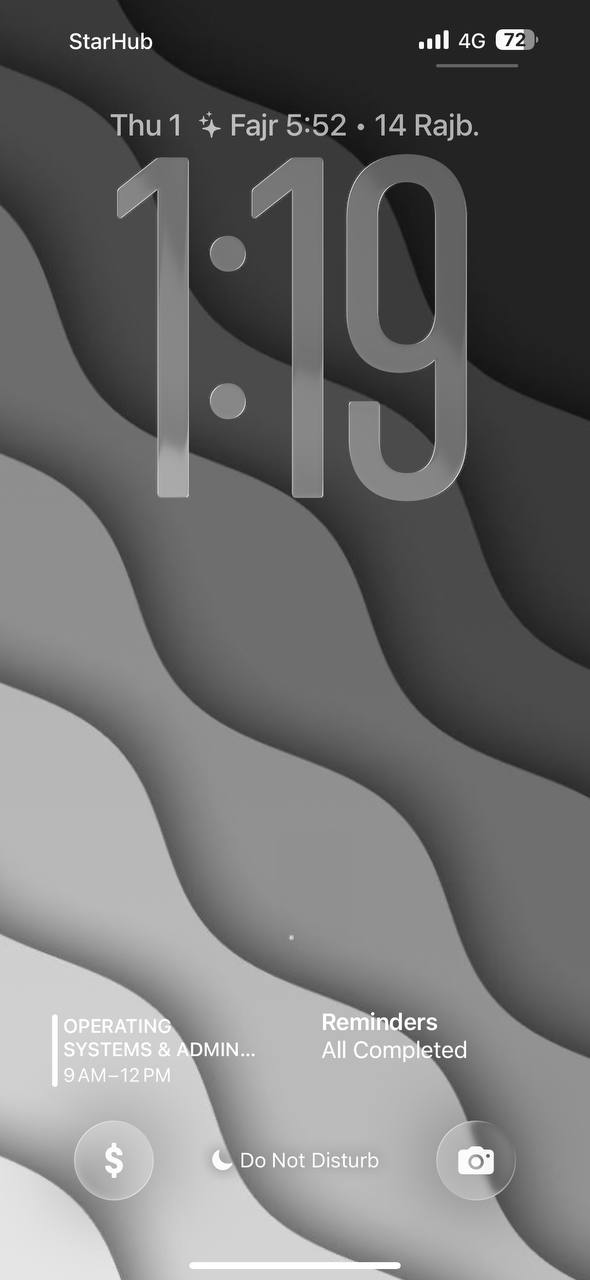
iOS Shortcut Home Screen

iOS Shortcut Activation

One-tap access to the expense tracker shortcut directly from the iPhone home screen - no app opening required
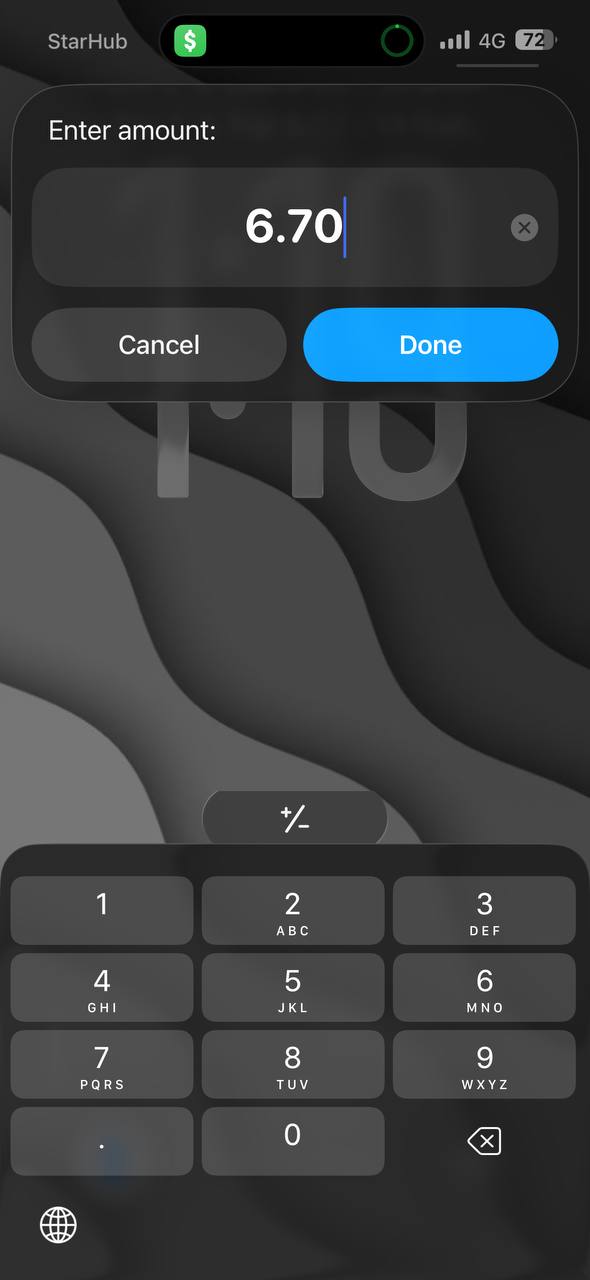
Amount Input Screen

Amount Entry

Shortcut prompts for the expense amount - accepts integer input for the money spent or received
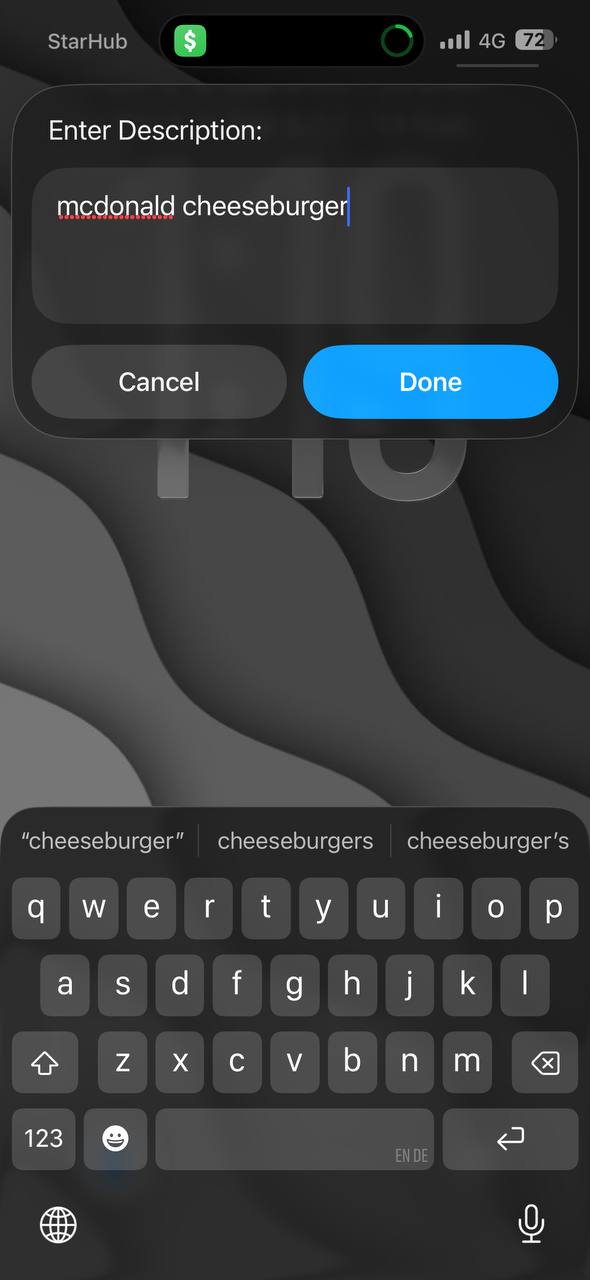
Description Input Screen

Description Entry

Add context to the transaction - describe where the money came from or what it was spent on
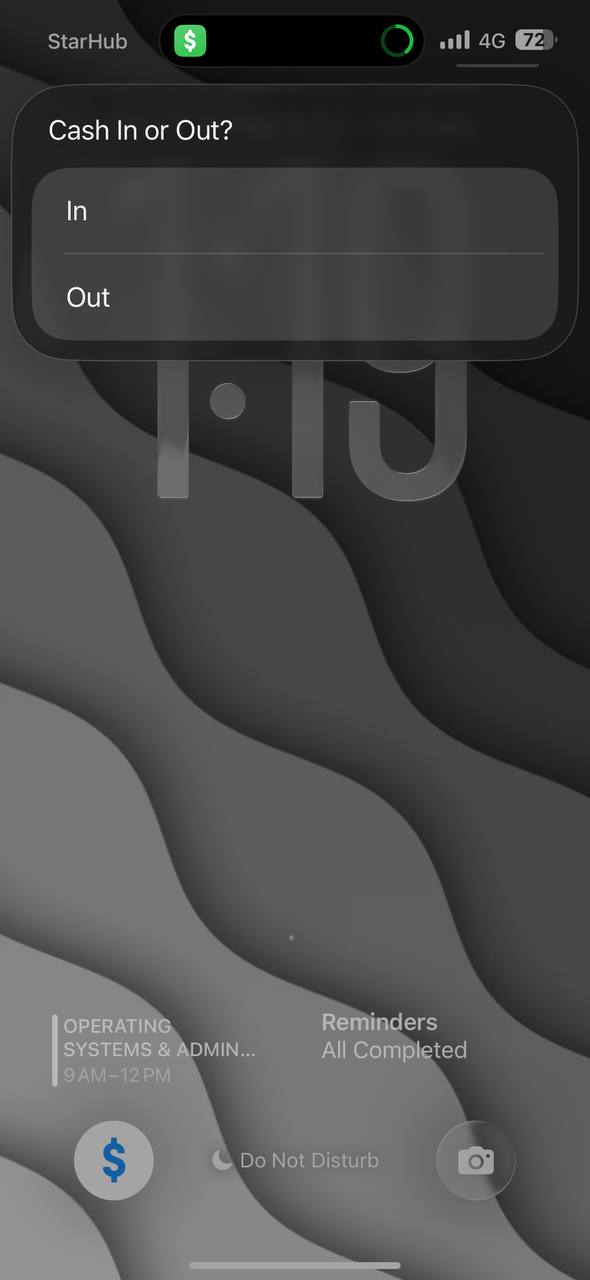
Cash In/Out Selection

Transaction Type Selection

Quick selection to categorize if money was received (Cash In) or spent (Cash Out)
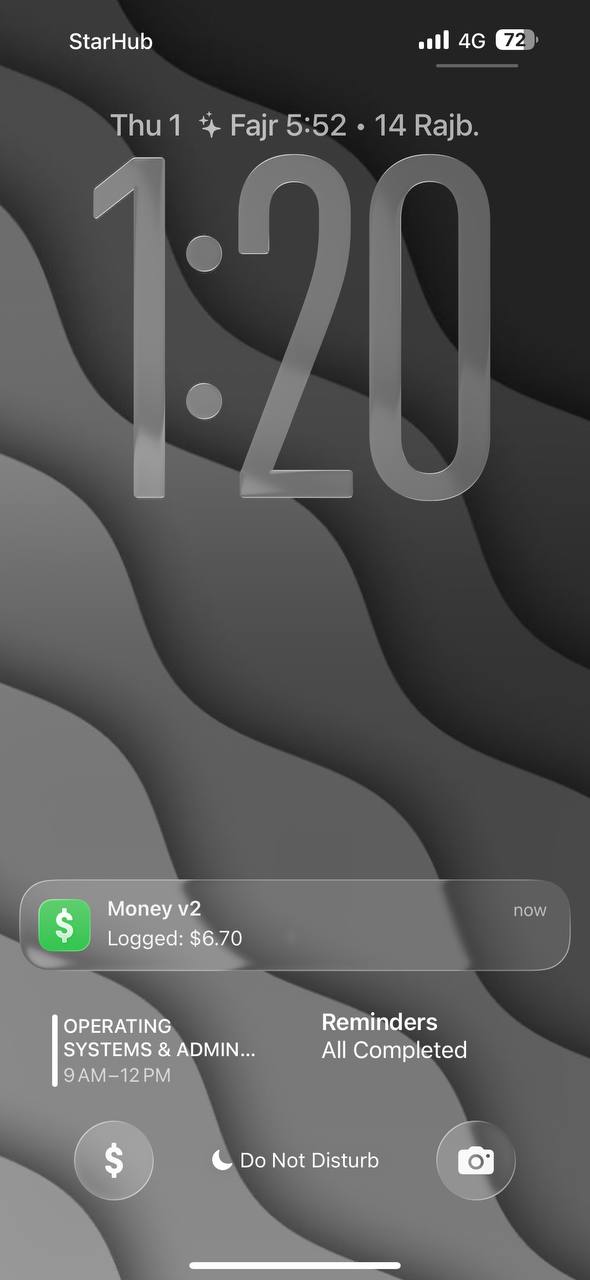
Transaction Confirmation

Instant Confirmation

Apps Script processes the data and provides immediate confirmation that the transaction was logged successfully

Google Sheets Dashboard

Real-Time Dashboard

Google Sheets dashboard showing all transactions with automatic timestamps, descriptions, and cash flow tracking
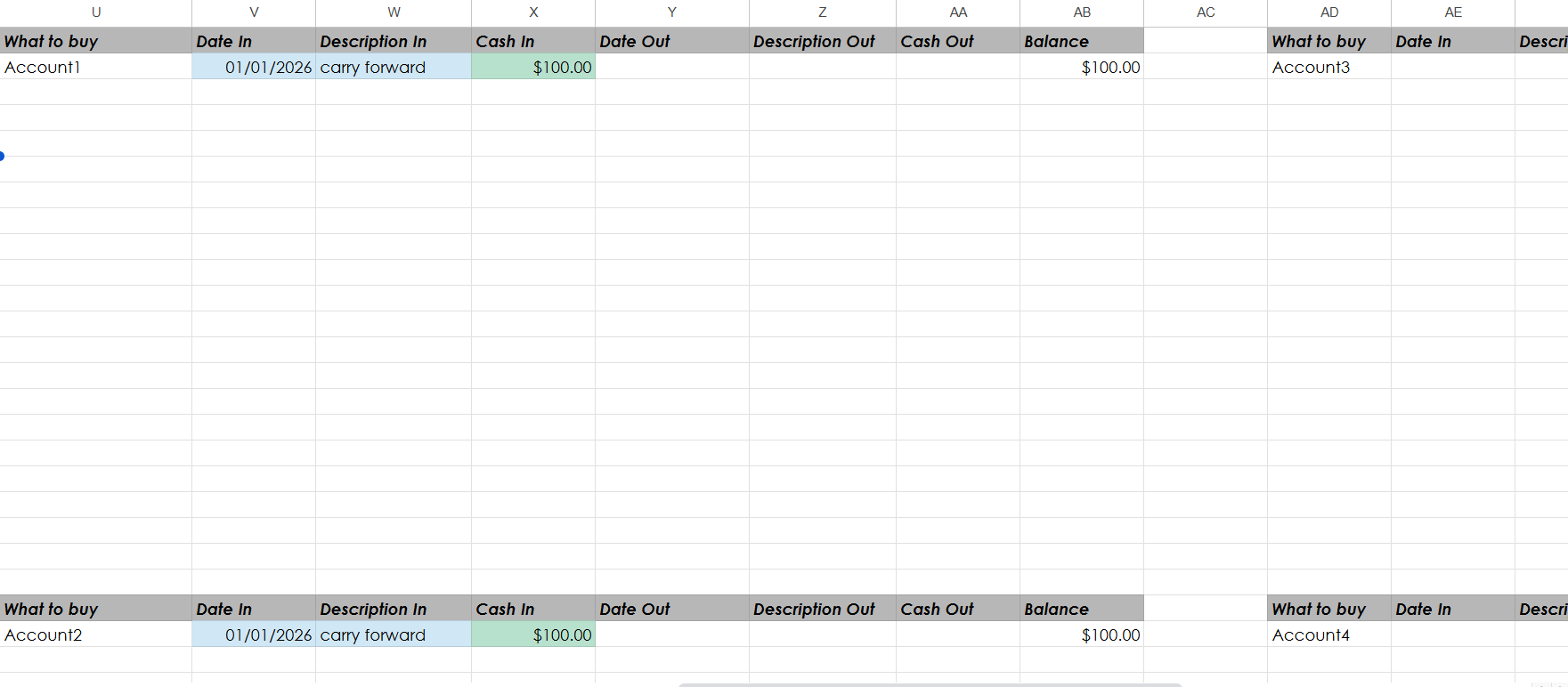
Multi-Account Dashboard

Scalable Multi-Account Tracking

Demonstration of scalability - multiple tables can track different expense categories or accounts simultaneously

Total Amount Summary

Running Balance & Totals

Automatic calculation of total cash in, cash out, and current balance with formula-based updates

Monthly Breakdown

Monthly Analytics

Organized view of expenses by month, enabling easy tracking of spending patterns and financial trends over time

How It Works

01

iOS Shortcuts Interface

Designed a custom iOS Shortcut that prompts for expense details (amount, description, category) with voice input support and quick-select options. The shortcut can be triggered from the home screen, Siri, or widget for instant access.

02

Google Apps Script Backend

Developed a Google Apps Script that receives data from iOS Shortcuts via webhook, validates inputs, formats data, and appends to Google Sheets with automatic timestamp generation and error handling.

03

Data Processing & Validation

Implemented data validation to ensure amount formats are correct, categories are standardized, and cash flow direction (in/out) is properly tracked. Script automatically calculates running balances and monthly totals.

04

Automation Optimization

Fine-tuned the automation workflow to minimize friction - from initial trigger to data appearing in sheets takes less than 2 seconds. Added error notifications for failed entries and duplicate detection.

Technical Implementation

Technology Stack

iOS Shortcuts

Purpose: Front-end interface for expense capture with voice input and quick-select menus.

Features: Siri integration, home screen widgets, dictation support, and custom prompts for amount, description, and category selection.

Google Apps Script

Purpose: Backend automation engine that processes and stores expense data.

Implementation: JavaScript-based script deployed as web app with webhook endpoint for receiving iOS Shortcuts data.

Google Sheets API

Purpose: Data storage and visualization layer with automatic calculations.

Features: Real-time data appending, formula-based running totals, monthly summaries, and category breakdowns.

Workflow Automation

  • Shortcut Input: Speak expense details instead of typing
  • Quick Categories: Pre-defined expense categories for one-tap selection
  • Automatic Timestamps: Server-side timestamp generation for accuracy
  • Error Handling: Notifications for failed entries or validation errors
  • Offline Queuing: Expenses queued when offline, synced when connection restored

Key Learning Outcomes

💡

The Challenge

Learning iOS Shortcuts automation logic and Google Apps Script APIs from scratch. Understanding how to design workflows that minimize user friction while maintaining data accuracy and reliability.

🛠️

Skills Developed

  • iOS Shortcuts automation and workflow design
  • Google Apps Script JavaScript development
  • API integration and webhook configuration
  • User experience optimization for minimal friction
  • Data validation and error handling
  • Spreadsheet automation and formula design
📈

Growth & Impact

This project taught me the power of automation in solving real-world problems. I learned that the best automation is invisible - users shouldn't think about the system, it should just work. The project reinforced my problem-solving mindset: identify friction points, automate repetitive tasks, and build systems that adapt to user behavior.